

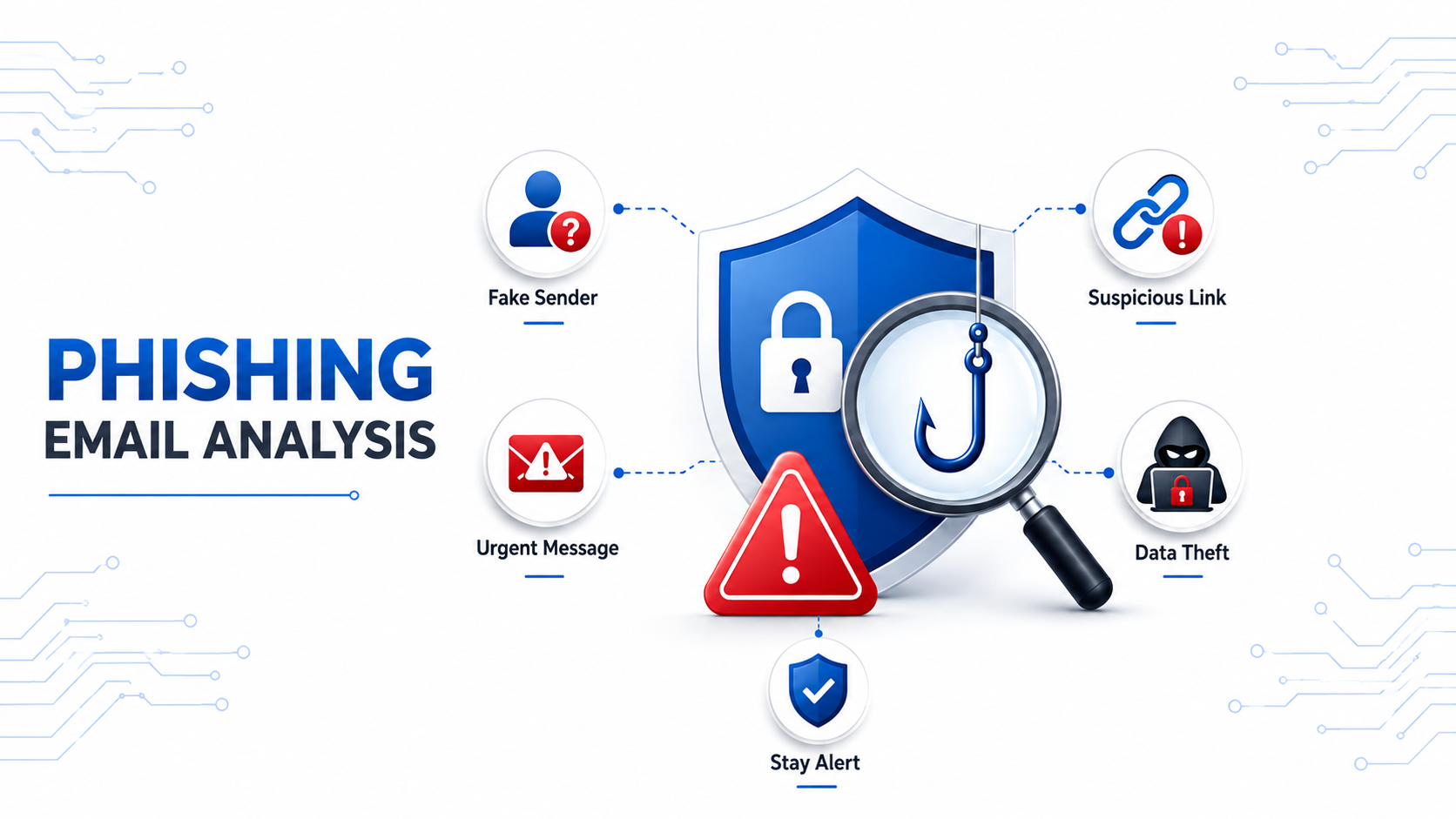
What is phishing Email?
Phishing emails are still the leading forms of social engineering attacks that target businesses today. Spam may be mostly low risk but a well-written phishing email will get many users to either reveal sensitive data or unintentionally download some type of malicious software. The biggest problem with this is that one unsuspecting employee clicking on a malicious link, opening an infected attachment etc., could provide an attacker their first point of entry into your business which has a potentially massive impact on your organization.
How security analysts investigate phishing emails in real-world environments.
1 . Don't touch anything yet
Don’t click on the link, Don’t open any attachments and don’t reply or hit “unsubscribe” – on a fake email, hitting “unsubcribe” will confirm that you have a valid e-mail address.If you’re looking into this for someone else, ask them to save the email as a file and then send that file to you instead of sending you the actual email. This will allow you to preserve the technical data needed for the next step.
2.Look at the hidden header information
Every email has an invisible technical record of where it came from and what servers it passed through. It's called the header, and you can see it in any mail app:
Gmail: open the email, click the three dots, choose "Show original"
Outlook: open the email, then File → Properties → Internet headers
Apple Mail: View → Message → All Headers
Yahoo Mail: open the email, click the three dots or More options, then choose “View Raw Message.”
Look for four things when you are looking at an email header:
Read the "Received" entries from bottom to top. but trust only on headers added by known mail servers. Fake header entries can be injected by attackers.
Compare the visible From address, the actual sender address, and the Reply-To address. If they differ, the email may be suspicious.
Outlook, Exchange, and trusted mailing services are common. An unknown scripting tool may indicate a manually created phishing email.
It can identify the sender's computer, server or domain.
Header Analysis tools :
3.Verify Sender Identity
You need to verify that your email has passed 3 built-in authentication systems by looking at the email headers and check whether they have been successfully authenticated as "passed" or "failed".
SPF: SPF checks that the sending IP address is allowed to send mail from the domain of the envelope sender.
DKIM: DKIM checks that the parts of the email that were signed, have not been changed since the signing domain signed them.
DMARC: DMARC connects the dots between SPF and DKIM and says what should happen when either of them fails.
Important Points:
fail: A failed dmarc result from an email originating from a major company indicates the email is absolutely spoofed.
Pass: Although passing all tests doesn’t necessarily guarantee the safety of the email, it does confirm that the sender is who he claims to be. Spoofers are able to bypass these checks using their own properly set-up malicious domains.
SPF / DKIM / DMARC verify Tools: EasyDMARC
4.Investigate the Sender's Domain
Find out what comes after the "@" in your sender's email to confirm that it is legitimate.
Check how long ago the company purchased their domain name using an online "whois search" tool. A well-established business should own their domain for many years, so if it was just recently registered it could be a sign that they are trying to scam you.
Look carefully at the spelling of the domain name to check for any visual tricks (typosquatting) like substituting r with n, 1 for L, or O for 0. For example, instead of going to paypal.com you may go to paypa1.com. Scammers will also use fake sub-domains when sending spam emails. For example, microsoft.fakename.com
Sender Domain Status check
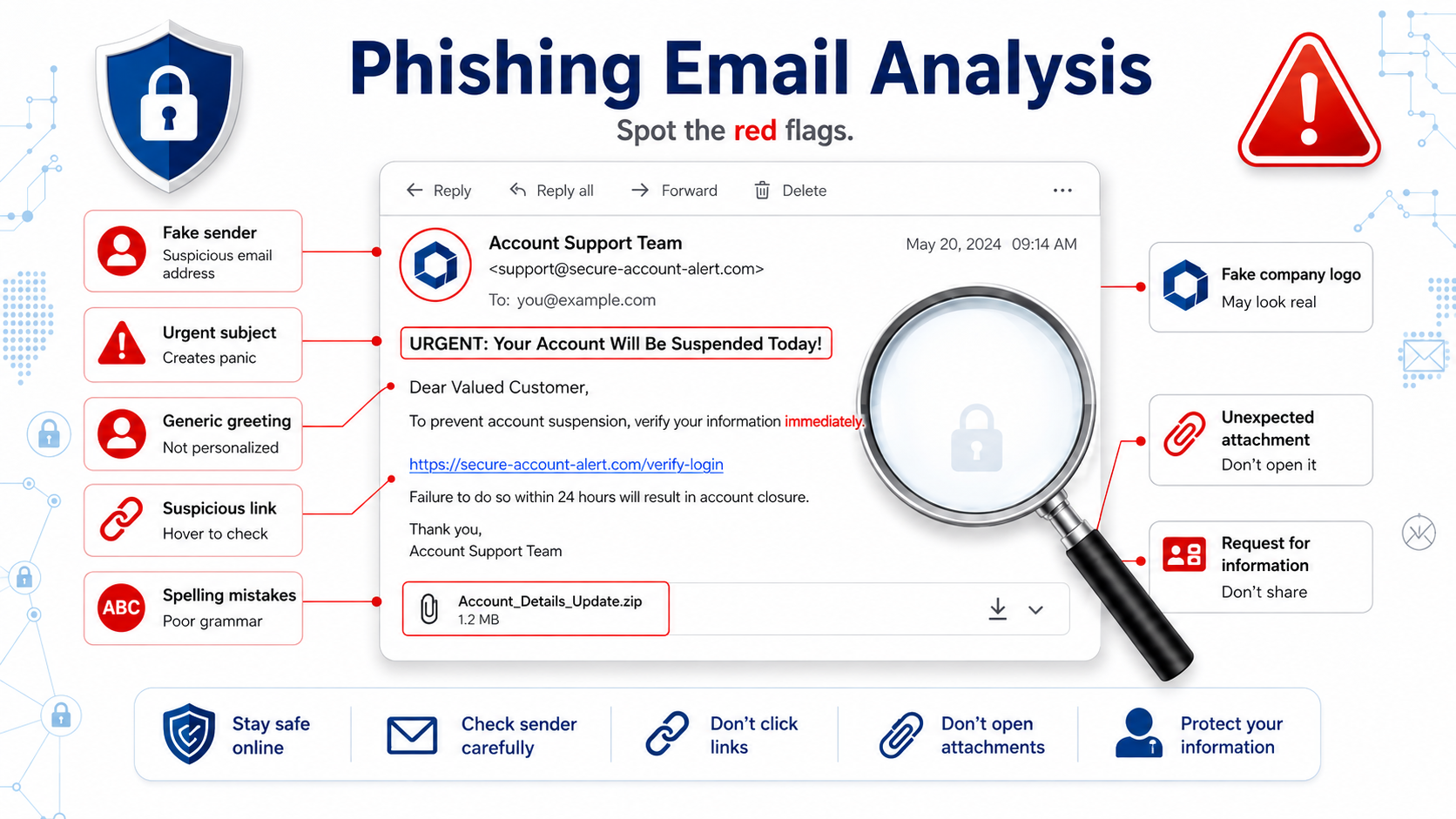
5.Identify Message Content Red Flags
Identify common red flag message content through the email's wording and layout as follows:
The Urgency andThreat Method: The phishing attack creates a sense of urgency with fake deadlines (for example “Your account will be closed within 24 hours”). Legitimate businesses do not usually ask for an immediate response to all email messages that are sent out.
Mass Mailings Use Generic Greeting Messages: If a business/service has your information but still sends you generic greetings such as “Dear User” or “Dear Customer,” this indicates they are sending mass mailings possibly as part of a phishing scam.
Poorly Branded Email Messages: Compare the logo(s) used in the email message to those used by the legitimate company. Compare color schemes, font types, etc. Scammers often provide poorly designed versions of their target company’s branding using either low quality logos,screenshots or simply poor image reproduction.
Financial Requests Made From Untrusted Sources: Do not trust financial requests made from sources that claim to have been referred to you by your employer or suppliers. Allowing anyone to send money on behalf of your employer or supplier can lead to severe financial loss.
6.Check where the links really go
Desktop: Hover over the link without clicking to preview the real destination at the bottom corner of your browser.
Mobile: Press and hold the link to preview the address do not tap.
Defang URLs when sharing: Write links safely (e.g., hxxps://example[.]com) to avoid accidental clicks when reporting scams.
Expand shortened links: Use an expander tool online to reveal hidden destinations.
Watch out for parameters in emails: If your email address is inside the URL, it is almost certainly a targeted attempt to steal credentials.
URL analysis Tools :
7.Be very careful with attachments
Word or Excel files that are prompting you to "Enable Content", or "Enable Macros" that message is the threat. There is no legitimate reason for a document to be requesting to enable either of these features.HTML files that have been sent via an email almost never occurs there is rarely a valid reason to send someone an entire webpage as an attachment. This tactic has one purpose; to evade email filtering mechanisms by scrambling the malicious content within the HTML file until after opening the file when it will assemble itself.Password Protected .zip File with the Password included in the Email - this appears to be a form of additional security. In fact, it is not. The password prevents your organization’s scanning tool from reviewing the contents of the .zip file.
Attachment analysis Tools:
Sandbox list (backup options)
8.Collect the IOCs
the end of your investigation, record your conclusion and all significant indicators, including the sender’s email address and domain, Reply-To and Return-Path addresses, sending IP, suspicious URLs, attachment name and file hash, subject line, and Message-ID. This information may help identify related phishing emails and support further investigation.
Conclusion
Always verify the sender of a phishing e-mail message by checking your contact list for the company's domain name (e.g. @amazon.com). Check the header information of an e-mail to make sure it came from where you believe it did. Be cautious when using links in phishing messages as they can lead to malicious sites. Do not open attachments unless you are certain what they contain. Verify if the person sending the phishing e-mail has authenticated themselves with your organization by looking at your organizations user authentication system. Record all important IOCs to assist in identifying other similar threats and supporting additional investigations.